kako Mobile Commuter Shoe Comparison
kako Mobile Commuter Shoe Comparison
kako Mobile Commuter Shoe Comparison Spreadsheet vs Google Sheets: From Swiping to Candidate Confirmation
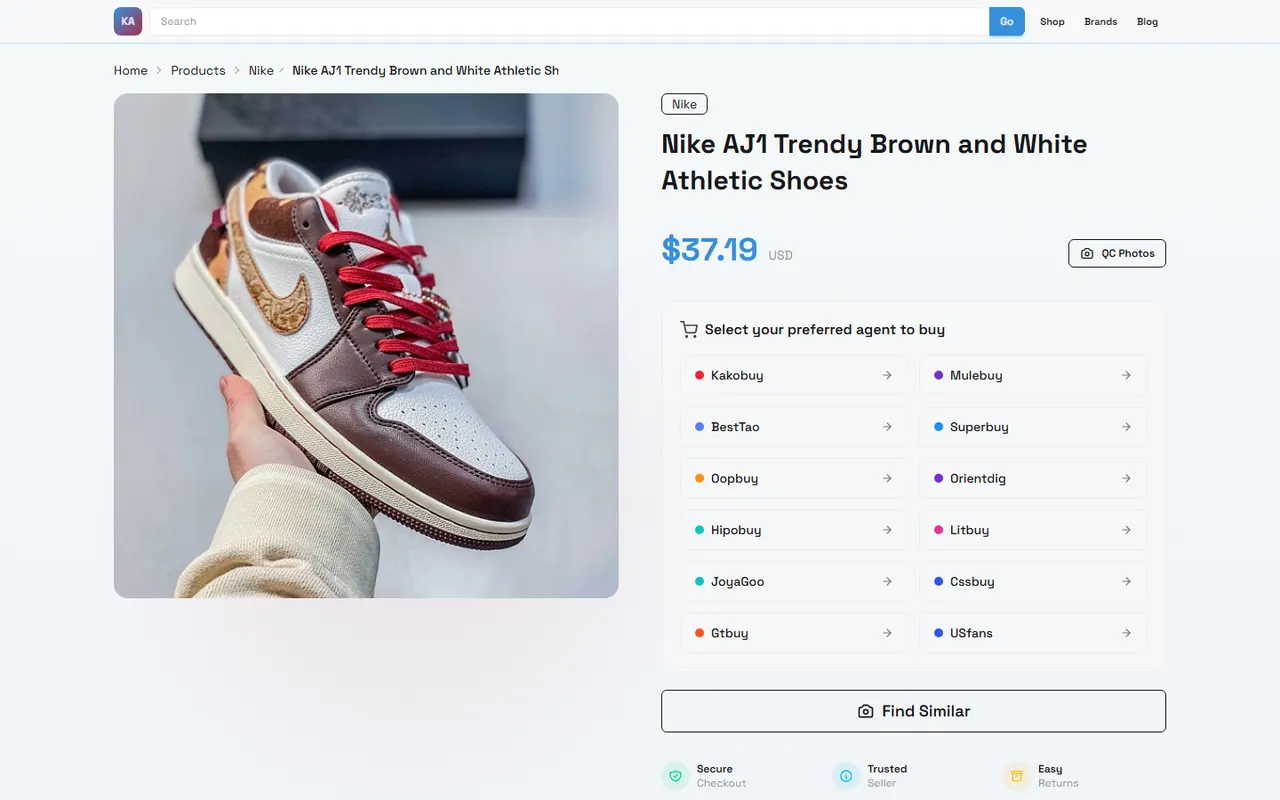
When filtering commuter shoes on mobile, the real question is usually not "which spreadsheet is more advanced," but how to quickly view candidate shoe images, sizes, materials, prices, links, and purchase status on a small screen, and complete a traceable review before placing an order.
This article compares the mobile usage approaches of the kako-sheets.net web spreadsheet and Google Sheets, focusing on swiping through, organizing candidates, and verifying evidence. It does not treat features, products, or purchase results that are not confirmed on the page as established facts.
Verification date: September 19, 2026. Product prices, inventory, sizes, shipping, purchase links, and platform interfaces may change, so you should re-check the corresponding product page and checkout page before purchasing.
Applicable scenario: You already have a batch of commuter shoe candidates and need to filter, compare, and save them on your phone.
Not applicable scenario: You need professional foot diagnosis, in-store fitting conclusions, or need to confirm that a particular pair currently has stock, fits well, or is suitable for long walks. A spreadsheet can only help organize evidence and cannot replace trying on and after-sales confirmation. 📱
Clarify the commuter shoe decision to be made on mobile first
Commuter shoe filtering is best broken down into a clear task: select a small number of styles worth further checking from the candidate list, rather than endlessly swiping through images on your phone.
Before starting, write down four criteria:
Approximately how long you walk each day, including subway transfers, stairs, or long periods of standing
Whether you prioritize lightweight, cushioning, slip resistance, breathability, formal appearance, or price
Acceptable size range and foot shape limitations
When you need to complete the purchase by, and whether you accept waiting for restocking or after-sales communication
Then keep the same set of fields for each candidate: product name, image, product link, visible price, size information, material description, sole or slip resistance description, seller or source, verification date, current judgment, and items to confirm.
The benefit is that even on a small phone screen, every swipe follows the same decision framework. If a candidate only has attractive images without size, material, or purchase information, it should be marked as "pending verification" rather than directly listed as recommended. 👟
How the kako web spreadsheet works on mobile
The kako-sheets.net web spreadsheet is better for putting candidates in a single continuously scrollable page. On mobile, prioritize checking whether horizontal fields are easily truncated and whether images, links, and text maintain correspondence while scrolling.
It is recommended to browse in the following order:
First look at the product name and main image to confirm that the row corresponds to the target shoe model.
Then look at the price, size, and key specifications to exclude candidates that clearly do not meet your criteria.
Check the product link and verification date to confirm that the information still points to a valid product page.
Finally, look at the notes column to record missing information, size questions, or items to confirm with the seller.
If a page is suitable for continuous scrolling, the advantage is that you can quickly form an overall impression, especially when narrowing down from a dozen shoes to three to five pairs. However, continuous browsing also has risks: when there are too many fields, it is easy to confuse adjacent columns on mobile; image loading failures, incomplete link display, or changes in horizontal scroll position can also lead to misjudgment.
Therefore, the kako Spreadsheet is more suitable for first-round browsing and candidate reduction. The first round does not require placing an order immediately; it only requires separating "clearly unsuitable," "insufficient information," and "worth reviewing."
How Google Sheets organizes the same batch of commuter shoe candidates
Google Sheets is better for splitting the filtering process into multiple columns, sorting criteria, or views. When organizing on mobile, you can create a master sheet and use simple status fields to reduce repeated reading.
Recommended statuses:
Initial candidate: only product discovery completed, not all information verified
Pending confirmation: questions about size, material, price, or purchase entry
Comparable: key fields have visible evidence and can be compared with other candidates
On hold: outdated information, broken link, mismatched criteria, or unresolved risk
Pre-purchase review: need to re-check price, inventory, shipping, and after-sales rules
On mobile, it is not advisable to add too many complex formulas at once. Keep fields simple to ensure that each modification does not break product links, images, and notes. If calculations are needed, add fields such as total budget, usage scenario per wear, or priority, but do not let formula results replace original evidence.
For example, a candidate shoe's "priority" can be determined by commuter suitability, information completeness, and price acceptance; but these scores are only organizational tools and cannot prove that the shoe is actually comfortable, slip-resistant, or durable. The advantage of Google Sheets is structured filtering, provided you continuously maintain the fields rather than just saving a neat-looking table. 🧾
Comparison of search, categorization, and swiping operations
Comparison dimension | kako web spreadsheet | Google Sheets |
|---|---|---|
First-round swiping | Suitable for continuously viewing a batch of candidates | Suitable for viewing by columns and filtering row by row |
Candidate categorization | Depends on page structure and notes | Can be organized with statuses, filters, and sorting |
Image and link correspondence | Focus on checking for misalignment when scrolling horizontally | Focus on checking whether cell content and links are still valid |
Review records | Suitable for leaving notes in the same candidate table | Suitable for continuously updating verification dates and processing statuses |
Main risk on mobile | Fields too wide, content truncation, horizontal scroll misreading | Too many columns, complex editing, version changes causing different interpretations |
Both can accomplish basic candidate confirmation, but the focus differs: the kako Spreadsheet leans toward "quickly viewing everything and narrowing down the range," while Google Sheets leans toward "continuous maintenance and condition-based filtering." If the number of candidates is small, the difference is usually minimal; if candidates require collaboration, repeated reviews, or long-term updates, field structure and status management become more important.
Differences in viewing product images, specifications, and links
Images help you identify the style, upper silhouette, color, and design details, but you cannot confirm actual material, weight, slip resistance, or wearing comfort solely from images. On mobile, images should be placed in the same row or adjacent to the product name and link to avoid forgetting which shoe an enlarged image corresponds to.
Specification information should distinguish between "explicitly written on the page" and "inferred from images." The former can be recorded as visible facts, while the latter should only be written as items to confirm. For example, an image that looks like a mesh shoe does not mean the product page has confirmed the upper is mesh; seeing a thick sole does not mean the page has stated a certain cushioning structure.
Also check links separately:
Do they still open?
Do they show a clear product name?
Do they have sufficient size, material, or price information?
Do they redirect to an empty page, tag page, or unrecognizable page?
Does the page price match the verification date recorded in the table?
Before purchasing, also re-check shipping costs, taxes, delivery range, return/exchange conditions, and payment pages. Old records in the table can only serve as comparison references and cannot replace current checkout information. 🔎
Which scenarios each method is suitable for in commuter shoe filtering
If you are quickly processing a batch of newly discovered candidates on your phone, the kako web spreadsheet is more suitable for initial coarse filtering. You can swipe along the page and quickly exclude items with mismatched appearance, missing sizes, prices over budget, or invalid links.
If you need to save candidates for several days, wait for restocking, ask about sizes, compare different colors, or record multiple price changes, Google Sheets is more suitable as a continuous list. Its value is not in automatically giving correct answers, but in making each verification traceable through fields.
Choose based on scenario:
Temporary browsing and quick narrowing: prioritize the kako Spreadsheet
Multiple rounds of verification and status management: prioritize Google Sheets
Few candidates and simple information: either one, focus on checking links and dates
Multiple people viewing: first unify field names, then decide which spreadsheet to use
Final pre-purchase confirmation: use a version that includes verification date, price, inventory, shipping, and after-sales notes
Do not treat a spreadsheet as a product quality guarantee just because it looks more professional. Tools only improve information organization and cannot replace product pages, seller responses, or actual fitting.
Information timeliness and evidence verification boundaries on mobile
Commuter shoe prices, inventory, sizes, promotions, shipping, and return/exchange policies are all highly volatile information. Every key record should at least include a verification date; if articles, tables, or screenshots are used for later purchase decisions, they should also note the destination country or region and the currency used.
On mobile, it is recommended to use the "candidate record plus current review" approach: first keep the information from when you found it, then reopen the product page before placing an order. If prices, inventory, or sizes have changed, update the current fields and keep necessary old records to avoid mixing information from different dates.
In the following situations, you should pause ordering and reconfirm:
Product name does not match the saved candidate name
Product page cannot be opened or shows blank content
Price lacks clear currency or changes significantly at checkout
Size chart is missing and seller cannot confirm measurement method
Material, slip resistance, or after-sales promises appear only in unverifiable text
Sensitive personal information beyond normal purchase requirements is requested
For return/exchange, import taxes, and customs issues, refer to the official rules and platform pages applicable to the current order destination. Do not handle compliance issues by splitting orders, under-declaring, or evading inspections.
Combined workflow for commuter shoe candidate confirmation
The two tools can be combined, but avoid maintaining two contradictory master lists. A safer approach is to designate one primary record and use the other tool for different stages.
Step 1: Quickly browse in the kako Spreadsheet. Start with images, product names, and basic criteria, and exclude clearly inappropriate candidates.
Step 2: Transfer the remaining candidates to Google Sheets, or establish review statuses in an existing Google Sheet. Each row should contain only one clear product page, supplemented with price, size, material, link, verification date, and items to confirm.
Step 3: Filter out three to five candidates by status and reopen each product page one by one. Confirm that the pages are still valid and check price, inventory, size, shipping, and after-sales information.
Step 4: Leave unverifiable content blank or mark it as pending confirmation; do not fill in based on neighboring products, image appearance, or model assumptions.
Step 5: Before placing an order, keep only one primary choice and one backup option. Record the reason for selection, such as "more complete size information" or "shipping conditions more suitable for the destination," not unverified claims like "best quality" or "absolutely comfortable."
The focus of this workflow is to reduce duplicate generation, duplicate viewing, and duplicate ordering risks. A candidate only needs one primary record; when changes occur, update the verification date and status.
Next steps: save, review, or hold off ordering
If you have just discovered a few commuter shoes, save the candidates and complete the first round of coarse filtering without purchasing immediately. Candidates worth keeping should at least have a clear product name, an accessible product page, and sufficient visible information to support the next step of judgment.
If candidates already meet basic criteria, the next step is to review, not to directly trust old data in the table. Re-check current price, inventory, size, shipping, taxes, delivery range, and return/exchange rules, and record the verification date.
If information is still missing, links are broken, sizes are unclear, or after-sales conditions cannot be confirmed, hold off ordering. Giving up an unverifiable candidate is usually safer than bearing the cost of a wrong purchase because the table looks neat.
Final selection can be judged as follows:
Limited budget and complete information: choose the candidate with clear total cost and relatively complete size information
Greater emphasis on commuter safety: continue checking sole, slip resistance, and applicable scenarios, and do not treat appearance as evidence
Greater emphasis on all-day comfort: keep room for fitting and returns/exchanges, and do not treat spreadsheet scores as proof of comfort
Need shoes soon: prioritize checking actual delivery time and inventory rather than only comparing listed prices
Uncertain about information: hold off purchase and wait for the product page or seller to provide verifiable details
The main saving from spreadsheets is reducing time spent on repeated searches and missing information; it cannot guarantee that shoes will be cheaper, more durable, or fit well. The increased risk is that old prices, old inventory, and unconfirmed subjective judgments may be mistaken for current facts. Therefore, this organizing method is suitable for people who need to compare multiple candidates and are willing to review before ordering; it is not suitable for those who treat spreadsheets as a substitute for fitting, quality testing, or after-sales commitments.
Frequently Asked Questions about Agent Platform Shopping
1. What is the purpose of spreadsheets on kako-sheets.net?
Agent platforms usually do not show products directly, so you need a spreadsheet to locate the items you want and obtain their purchase links. Another option is to ask for help on Reddit or Discord, where recommended products are often great, but purchasing this way can be slow. On kako-sheets.net, spreadsheets are built over a long time by collecting information from those platforms.
2. How can I evaluate product quality using kako-sheets.net?
To judge product quality, look at the QC photos instead of factory photos, since factory images are often edited. Use the QC photos to verify that the product matches your specific detail needs before buying. Also, avoid extremely low-priced items on kako-sheets.net, as they tend to be of poor quality.
Browse our latest products and find your next favorite item.